The Apps page is your command center for managing all your mobile app configurations. ZenAppBuilder allows you to create multiple apps with different designs, content, and settings.
The Apps List
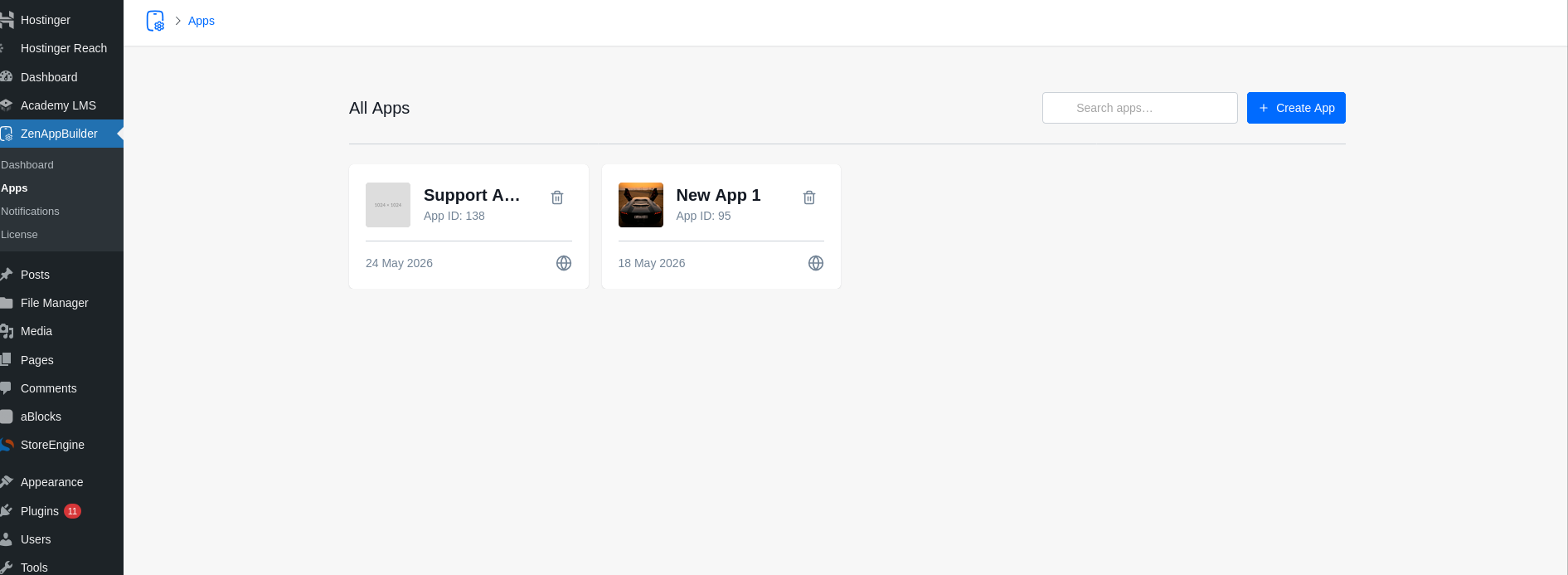
When you navigate to ZenAppBuilder > Apps, you will see a list of all existing apps.
- Search: Use the search bar to find apps by name.
- Filter/Sort: Organize your apps to stay productive.
- Actions:
- Manage: Opens the App Editor for that specific app.
- Delete: Permanently removes the app configuration. Warning: This action cannot be undone.
Creating Your First App
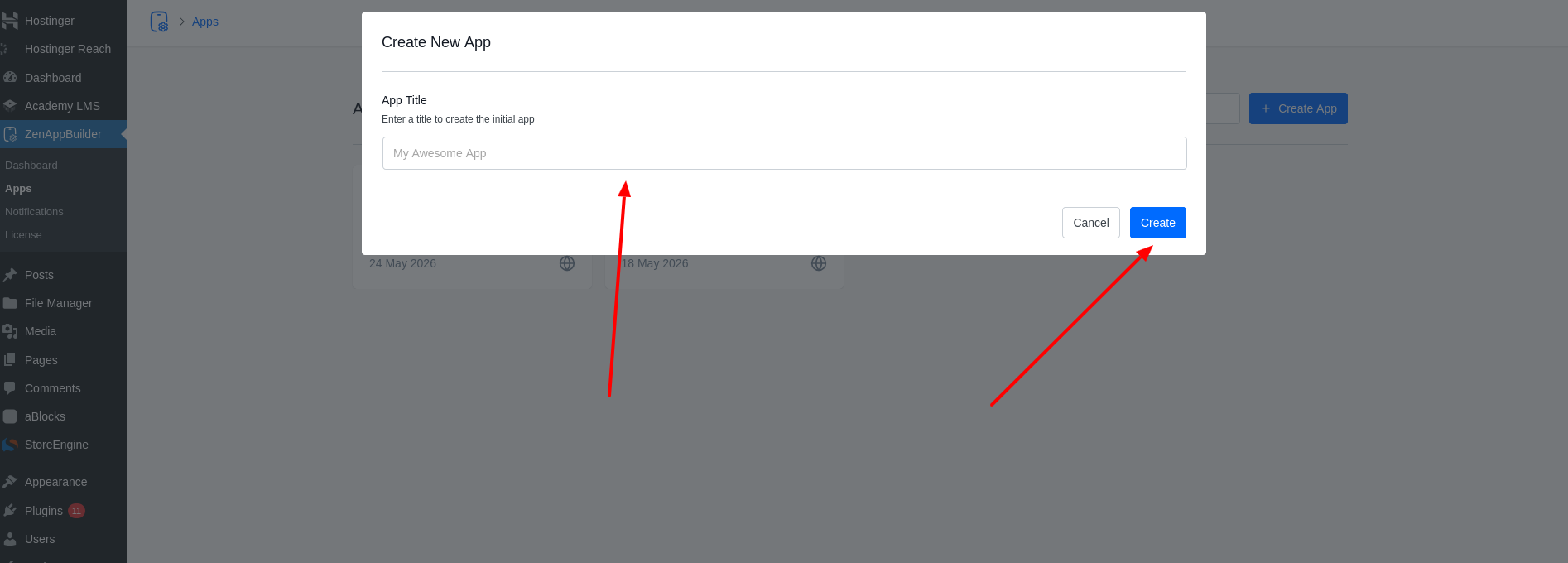
- Click “Create New App”: Located at the top right of the Apps page.
- Enter App Name: This is the internal name used to identify the app in your dashboard (e.g., “My Online Store” or “Member Portal”).
- Confirm: Click Create. You will be automatically redirected to the Manage App editor.
The App Editor Lifecycle
Once inside the editor, your changes are saved to a draft state.
- Auto-Save: The editor periodically saves your progress.
- Manual Save: Use the “Save Changes” button in the top right to ensure your latest configuration is persisted.
- Version Control: When you are ready to download a build, the system will prompt you to create a “Version Snapshot.” This allows you to “bookmark” a specific design before moving on to new experiments.