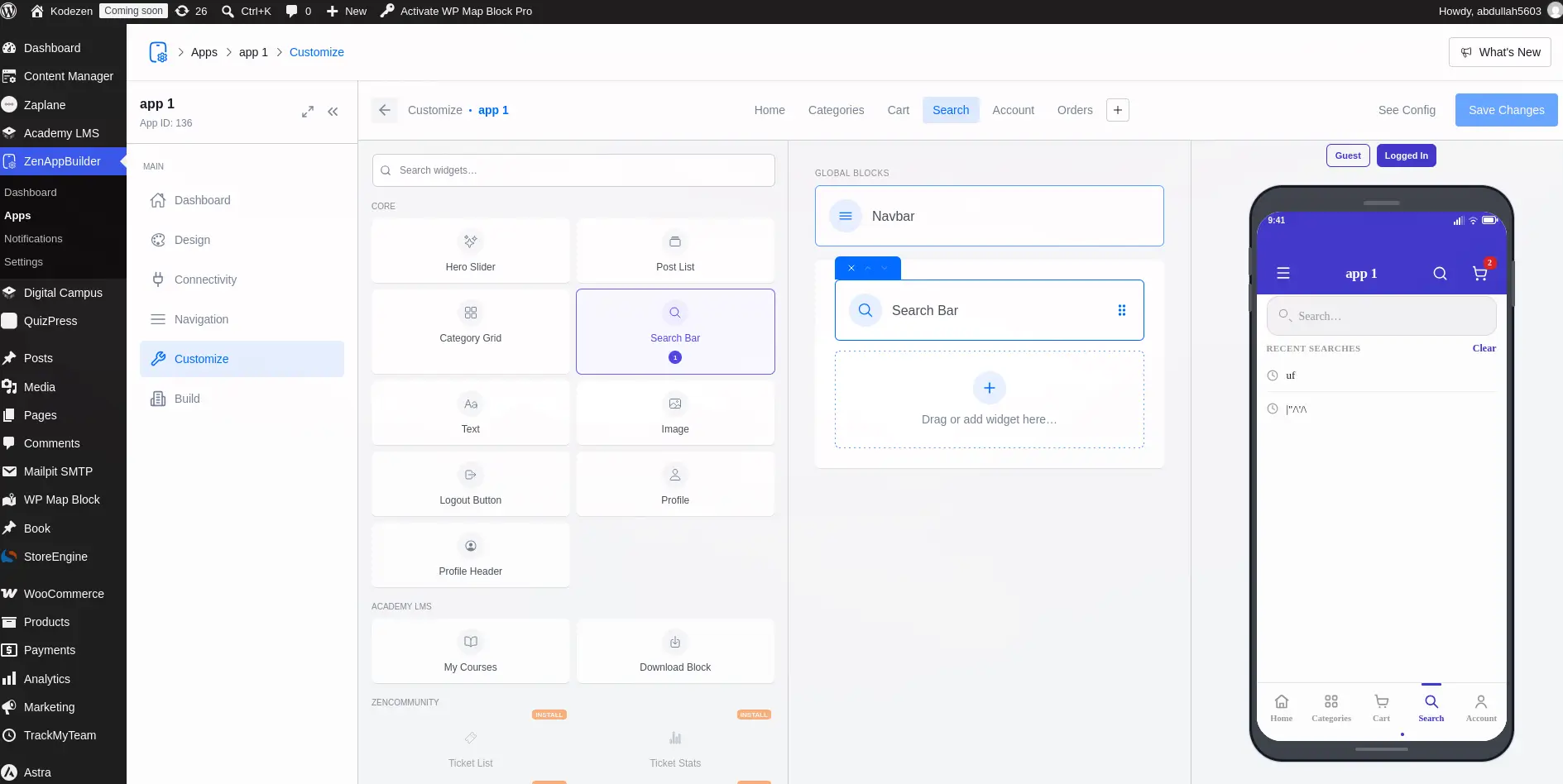
ZenAppBuilder connects to WooCommerce so shoppers can browse your catalog, add products to cart, check out, and view their order history — natively in your mobile app.
Requirements
- WooCommerce: must be installed and active on your WordPress site.
- HTTPS: required for the Application Password authentication that every WooCommerce request uses (same as the rest of the app — see Connectivity & Authentication).
- ZenAppBuilder is compatible with WooCommerce’s High-Performance Order Storage (HPOS).
Detecting WooCommerce
ZenAppBuilder checks whether WooCommerce is active on your site automatically — there’s no manual “connect” step or API key to enter. As soon as the plugin is active, its blocks become available in the Customizer.
Product Catalog
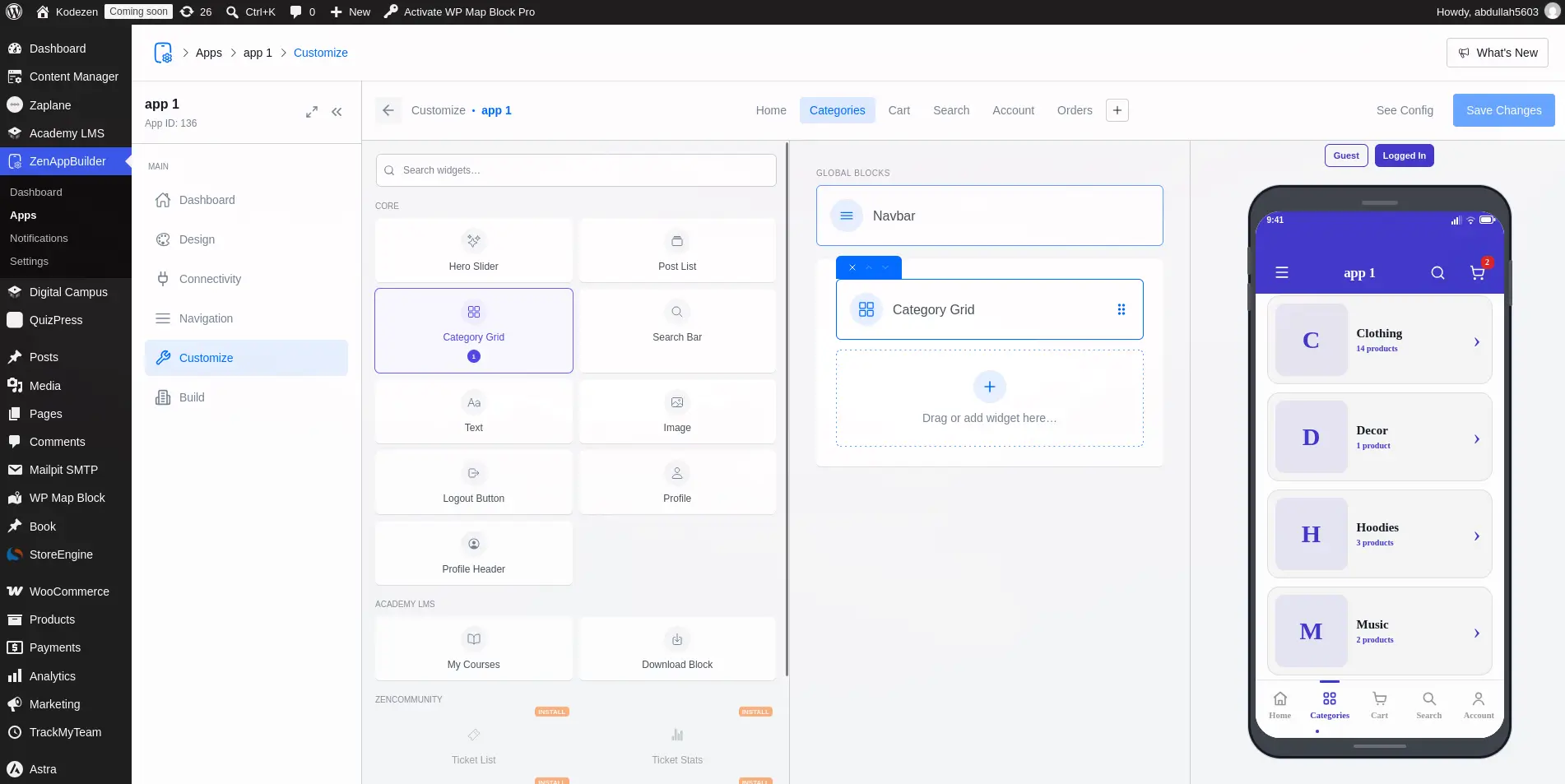
Add a Post List or Category Grid block to any screen and point its data source at WooCommerce to show your products or product categories, complete with:
- Product image, title, and price
- Sale price with the original price struck through
- Pagination (“Load More”)
Products display in your store’s configured currency and symbol automatically.
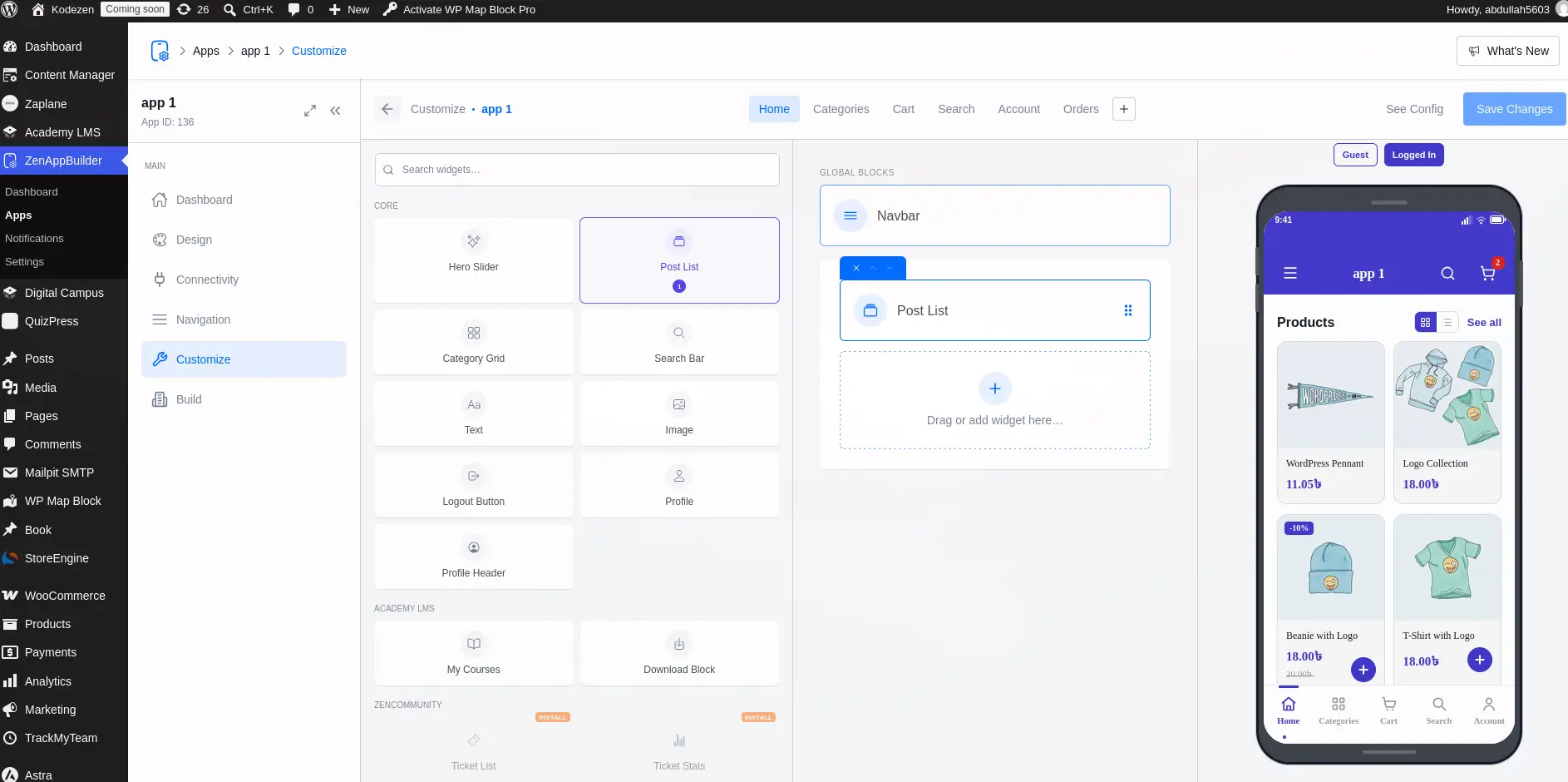
A dedicated single-product detail page (image gallery, variations, reviews) isn’t available yet — tapping into the catalog currently opens a browsable product listing rather than a per-product page. This is on the roadmap.
Cart
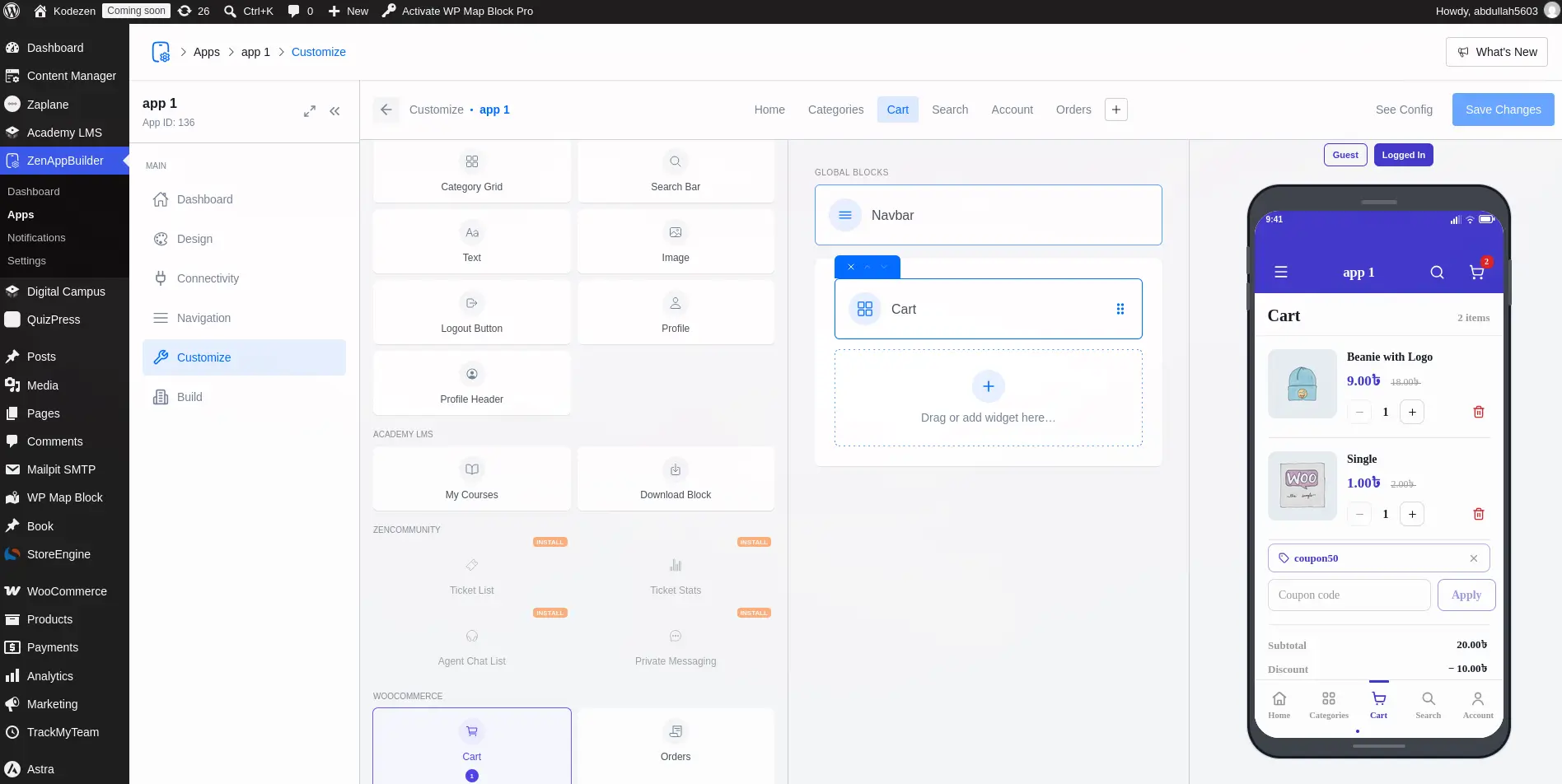
Add the Cart block to give your app a shopping cart screen:
|
Setting |
Description |
|
Header Text |
The title shown at the top of the cart screen |
|
Show Coupon |
Toggle whether shoppers can enter a coupon code on the cart screen |
The cart reflects your live WooCommerce cart in real time — quantities, coupons, and totals update the same way they would on your website.
Checkout
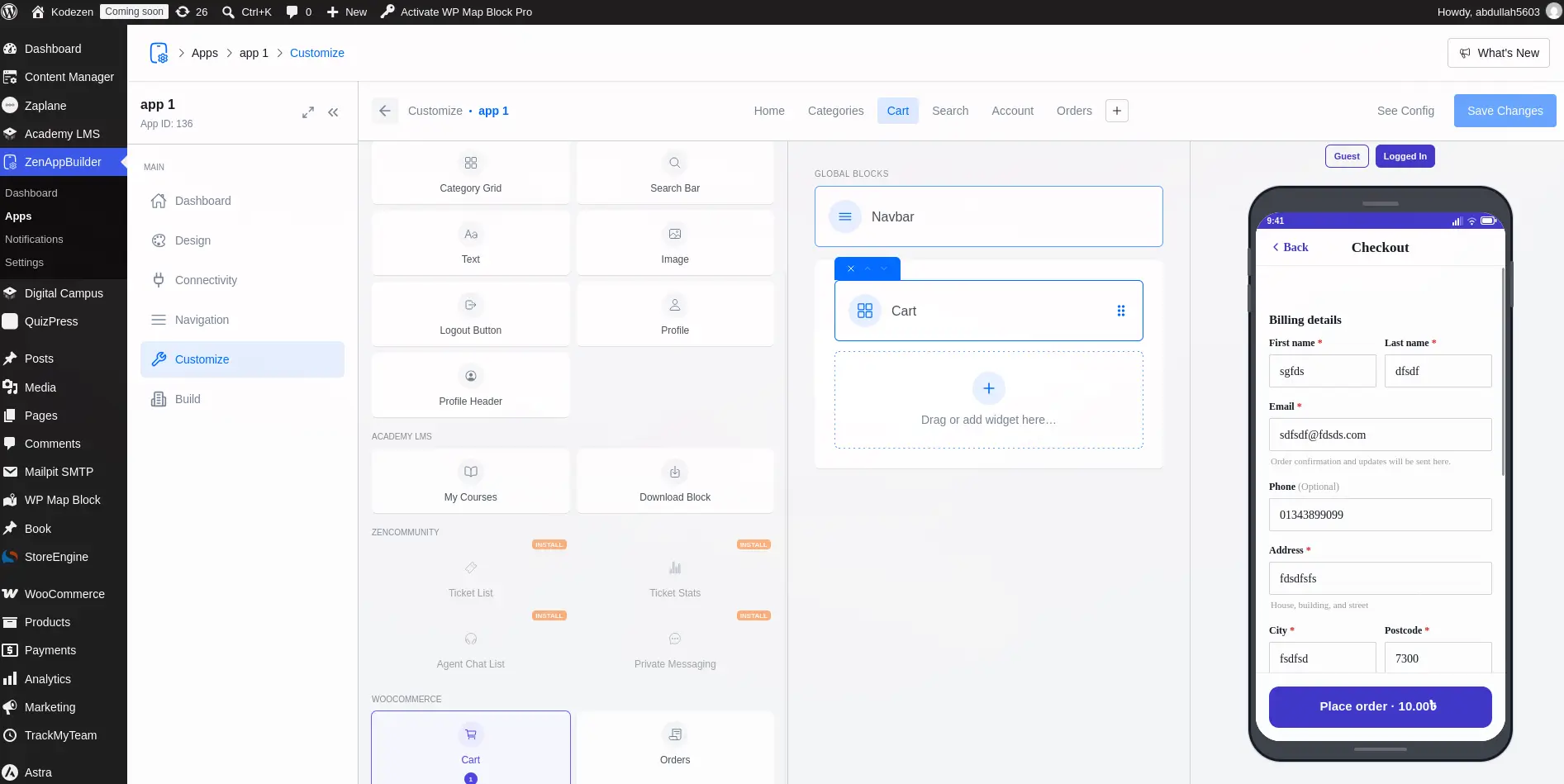
Tapping checkout from the Cart takes shoppers through a native Checkout screen:
- Billing and shipping address form
- Payment method selection — whichever of these are enabled in your WooCommerce settings: Cash on Delivery, Direct Bank Transfer, Check Payments, or Stripe
- For Stripe, payment is collected with a native in-app payment sheet — card details never pass through your server in plain text
- A Success screen confirms the order once payment completes
Orders
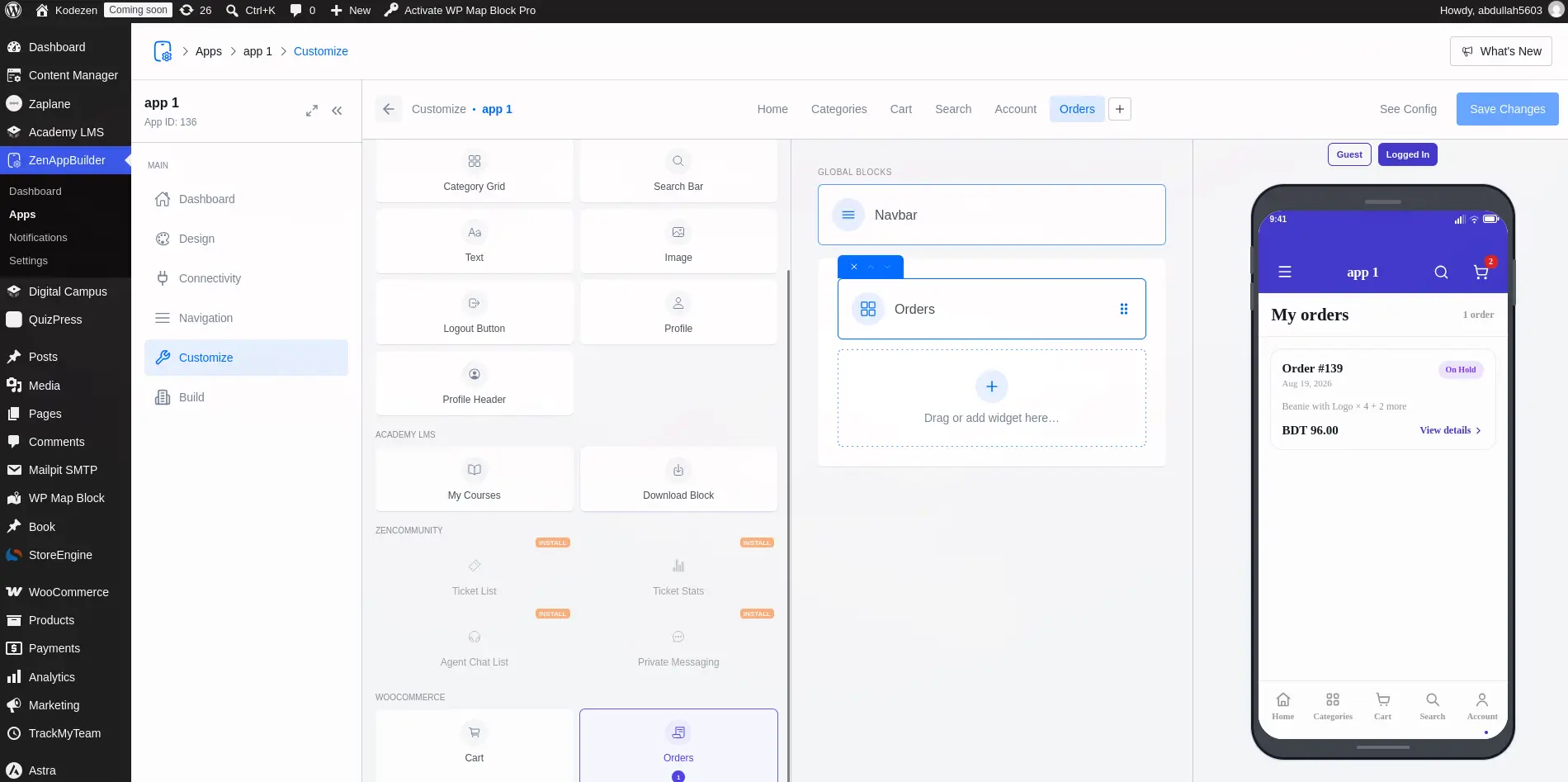
Add the Orders block to give shoppers a “My Orders” screen:
|
Setting |
Description |
|
Header Text |
The title shown at |
|
Per Page |
How many orders load at a time |
Tapping an order opens its Order Detail screen. Each shopper only ever sees their own orders — never another customer’s.
Downloadable Products
If your store sells downloadable products, customers can access their purchased files from a dedicated Downloads screen once they’re logged in.
Guest Checkout & Accounts
Whether shoppers can check out as a guest, or whether an account is required, follows your store’s own WooCommerce → Settings → Accounts & Privacy configuration — ZenAppBuilder doesn’t add a separate toggle for this.
Search
There is a dedicated search block to use the search system on any screen. Select a screen → click on the search block → select WooCommerce layout. In the generated app, you can use the search system.