

ZenAppBuilder gives you full control over your app’s visual identity. Use the Design tab to configure colors, typography, and assets.
Branding & Colors
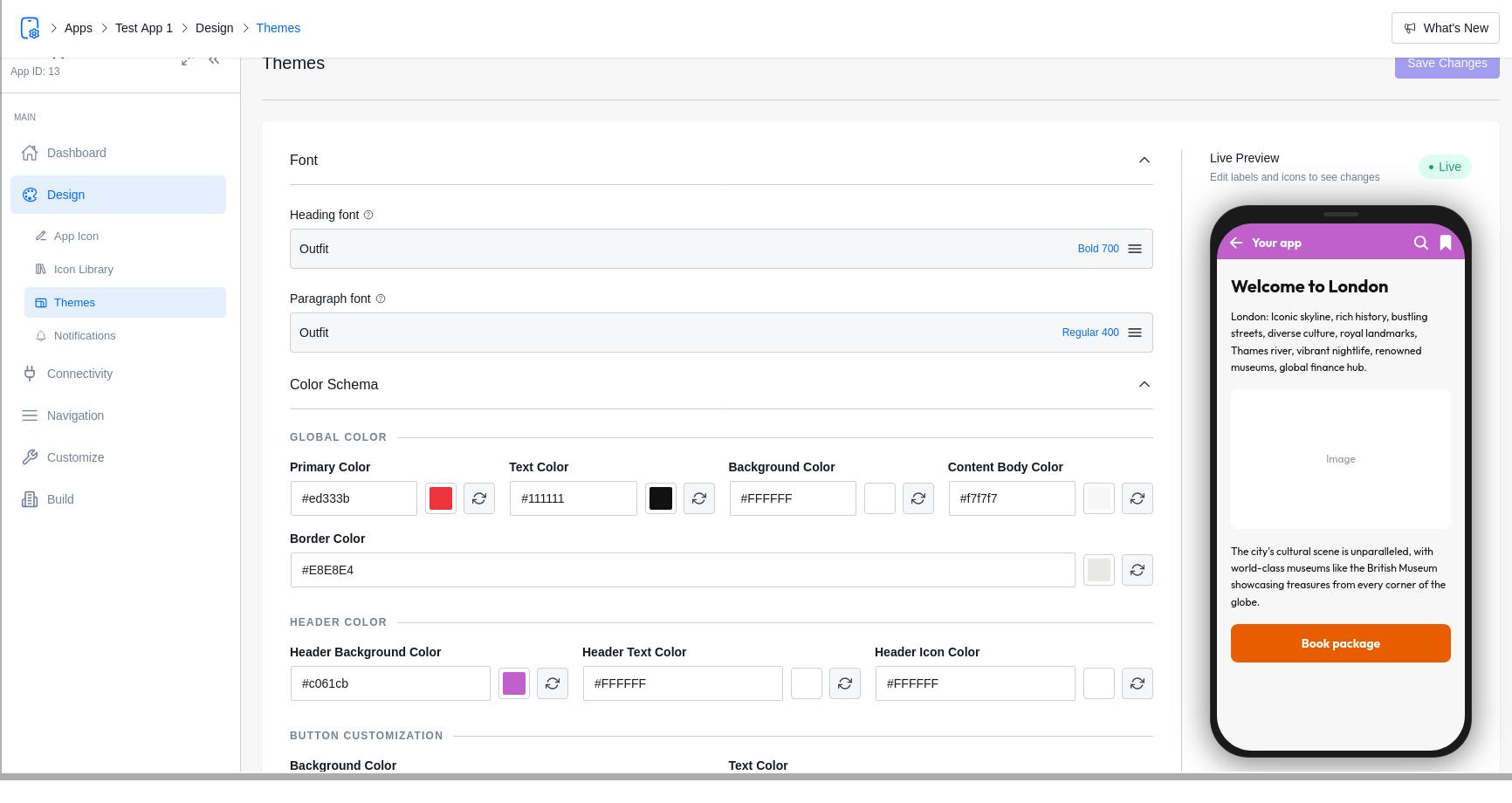
In the Themes sub-tab, you can define your app’s color palette. These colors are applied globally across all screens and blocks.
- Primary Color: Used for headers, active tabs, and main buttons.
- Secondary Color: Used for accents and secondary UI elements.
- Background Color: The main canvas color of your app screens.
- Text Color: The primary color for headings and body text.
- Border Color: Used for dividers and card outlines.
Button Styling
You can independently customize the appearance of buttons:
- Background & Text Color.
- Border Radius: Control how rounded your buttons are (0px for square, 25px for pill-shaped).
- Border Width: Add an optional outline to your buttons.
Typography
Select the perfect fonts for your brand from the built-in Google Fonts library.
- Heading Font: Applied to all titles and large headers.
- Paragraph Font: Applied to body text and descriptions.
Note: You must have a Google Fonts API key configured in your wp-config.php for this list to populate.
App Assets
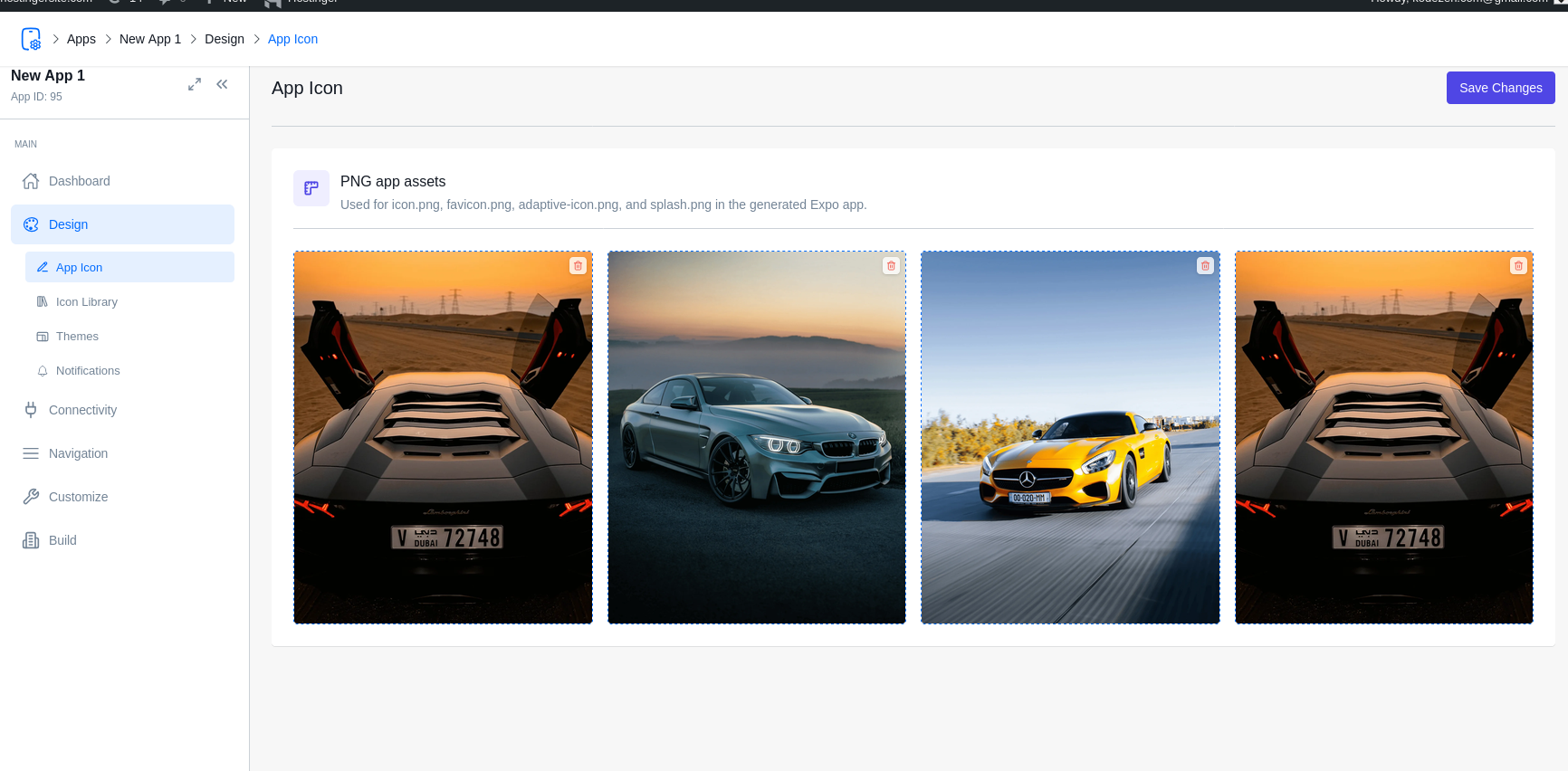
Under the App Icon & Splash sub-tab, you can upload the images that make your app feel professional.
- App Icon: The icon users see on their home screen. (Recommended: 1024x1024px PNG).
- Adaptive Icon: Required for Android to support different icon shapes.
- Splash Screen: The image shown while your app is loading. (Recommended: 1242x2436px PNG).
ZenAppBuilder automatically handles the resizing and configuration of these images for the generated Expo project.
Toast Notification Designer
Toasts are the small popup messages that appear at the top or bottom of the screen (e.g., “Success!”, “Error”).
- Position: Choose between Top or Bottom.
- Colors: Customize the background colors for Success, Error, and Info messages.
- Duration: Set how long the message stays on screen.
- Preview: Use the “Play” button in the phone frame to test your toast animation live.