

Welcome to ZenAppBuilder, the most powerful way to turn your WordPress website into a native mobile app. This guide will walk you through the initial setup required to start building your app.
Prerequisites
Before you begin, ensure your WordPress environment meets the following requirements:
- WordPress Version: 5.8 or higher.
- Simple JWT Login Plugin: Required for mobile authentication. This allows your users to log in to the app using their WordPress credentials.
- HTTPS: Your site MUST have an SSL certificate (HTTPS) for secure communication with the mobile app and Expo services.
Installation
- Upload the Plugin: Navigate to Plugins > Add New > Upload Plugin in your WordPress dashboard.
- Activate: Once uploaded, click Activate.
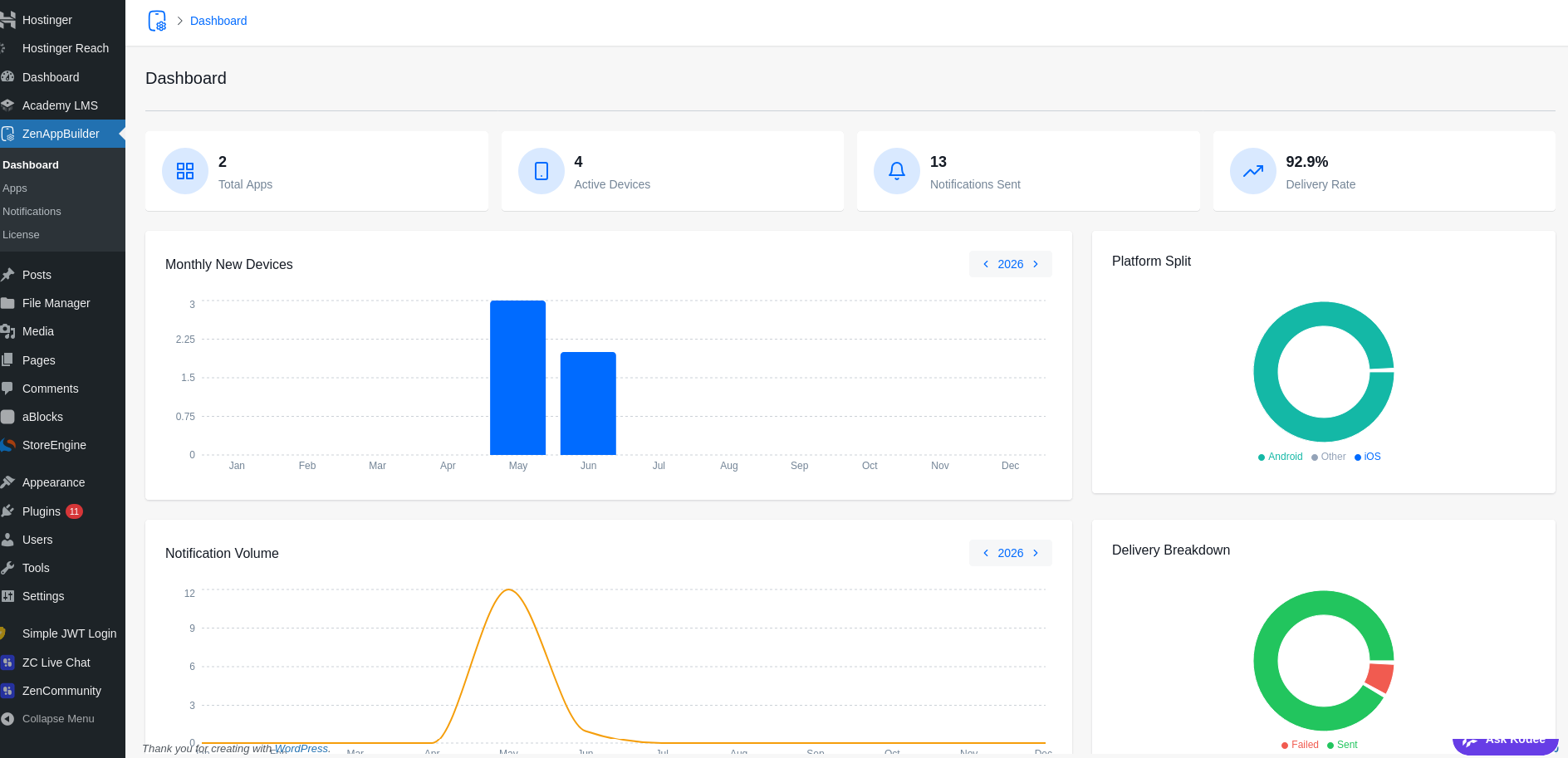
- Capability Check: ZenAppBuilder creates a new menu in your sidebar. If you don’t see it, ensure your user role has the edit_zab_apps capability (granted to Administrators by default).
Initial Configuration
1. Google Fonts API Key
To use custom typography in your app, you need a Google Fonts API key.
- Generate a key at the Google Cloud Console.
- Add it to your wp-config.php:
define( ‘ZAB_GOOGLE_FONTS_API_KEY’, ‘YOUR_API_KEY_HERE’ );
- Your First Steps
Now that the plugin is active and configured, you are ready to create your first app. Head over to the Apps menu to get started.