
The Customize tab is where you design the layout and content of your app. This visual editor uses a “Screen and Block” system to give you total control over the user experience.
Screens: Your App’s Pages
An app is a collection of screens. Each screen represents a unique page in your mobile app (e.g., Home, Shop, My Account).
Managing Screens
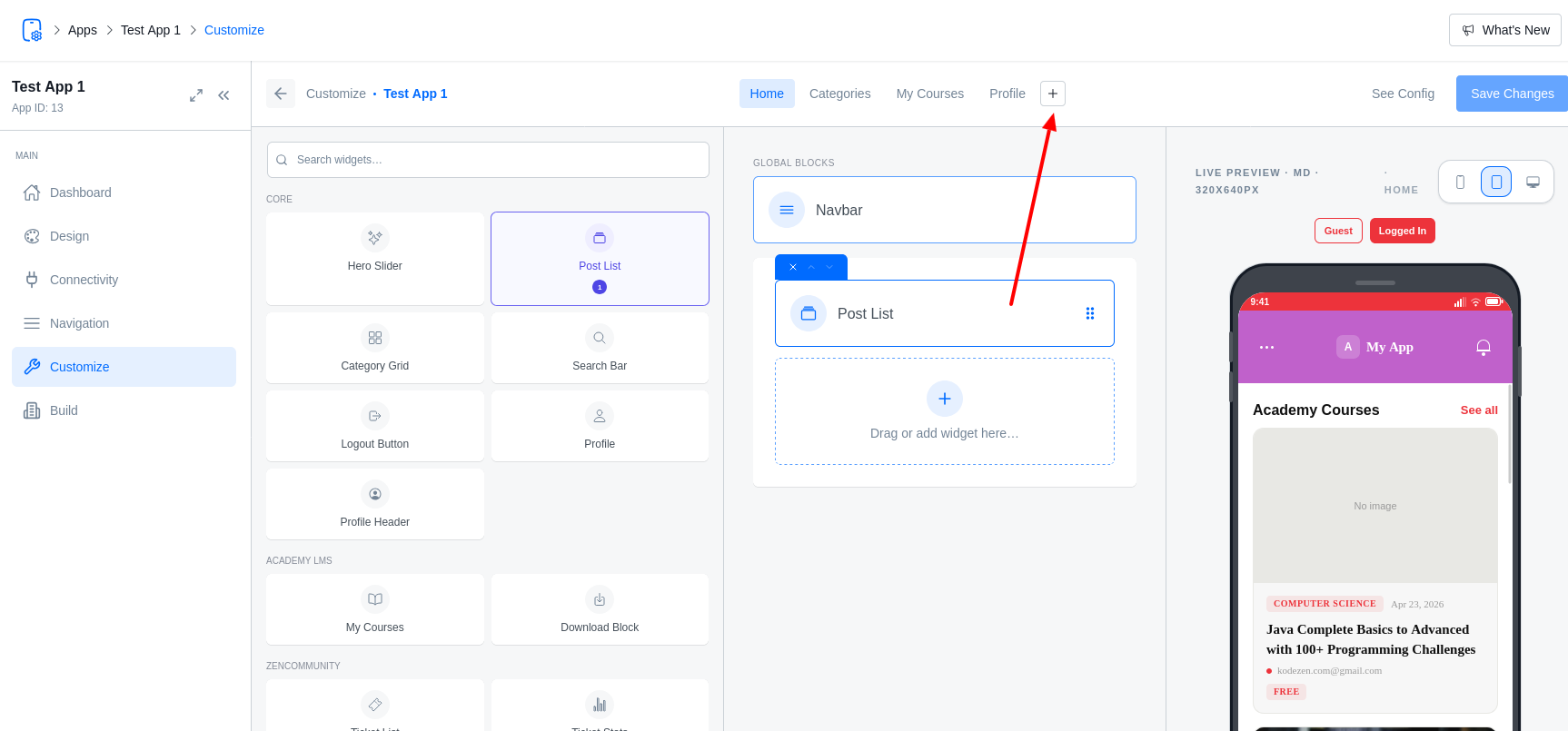
- Add Screen: Click the “+” icon to create a new screen.
- Rename: Double-click a screen name in the sidebar or use the edit icon.
- Slug Management: Each screen has a “Slug” (a unique ID). Use the lock/unlock icon to change it. Caution: Changing a slug might break existing links to that screen.
- Reorder: Drag and drop screens in the sidebar to organize your workspace.
Blocks: Building Your Content
Inside each screen, you add “Blocks.” Blocks are the UI elements that display your content.
Adding Blocks
- Select a screen from the sidebar.
- Click Add Block to open the Block Palette.
- Drag a block into the phone preview or the block list.
Block Types
|
Block |
Description |
|
Hero Slider |
Large sliding banners for featured content. |
|
Post List |
Displays your WordPress posts in cards or list format. |
|
Category Grid |
A grid of your content categories (Post categories, Course categories). |
|
Search Bar |
Adds a functional search field to the screen. |
|
Profile |
Shows user information, login buttons, and account links. |
|
LMS Blocks |
Special blocks for Academy LMS (My Courses, Certificates). |
|
Support Blocks |
Special blocks for ZenCommunity (Ticket lists, Chat history). |
Configuring Blocks
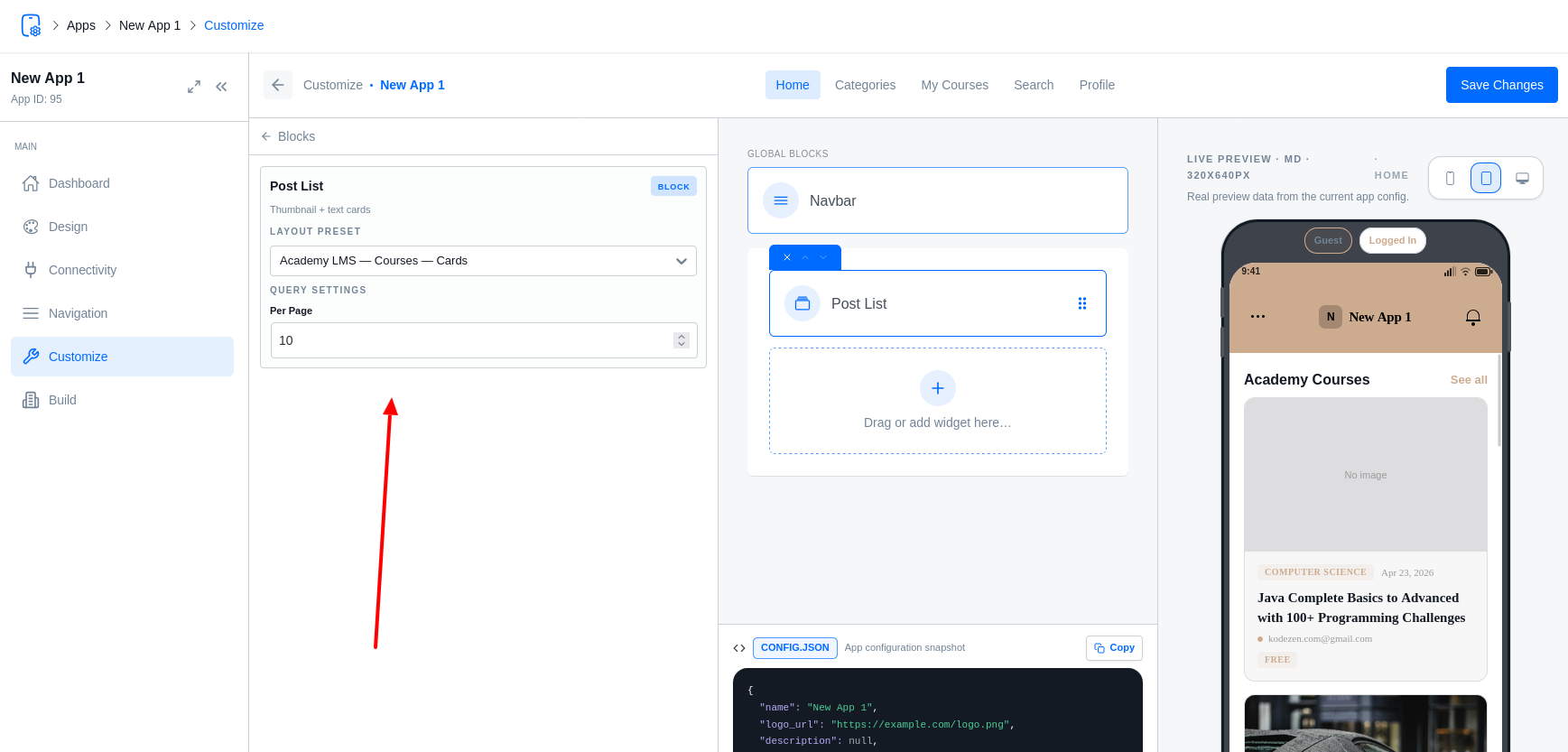
Click on any block to open its Block Properties panel:
- Variants: Change the visual style (e.g., “Cards” vs “Compact List”).
- Data Source: Select where the content comes from (e.g., a specific category).
- Settings: Customize headings, post counts, and display toggles.
Live Mobile Preview
The center of the Customizer features a Live Phone Frame. As you add blocks and change themes, this preview updates in real-time, showing you exactly how your app will look on a physical device.
- Device Toggle: Switch between different screen sizes to test responsiveness.
- Interactive: You can tap on buttons and navigate between screens directly within the preview.